

- Create monitors that evaluate transaction data over a defined time window.
- Compare results against a configured threshold to detect anomalies or performance degradation.
- Automatically trigger alerts when a threshold is breached.
- Deliver notifications via webhooks to integrate with your internal tooling or incident management systems.
The term monitors in the dashboard consolidates several underlying
concepts—metrics, incidents, alerts, and notifications—into a single
interface. In other contexts, such as webhook events, alerts map to
incidents and monitors map to metrics.
Monitors
A monitor tracks a specific metric—such asauth_rate—and defines how that data is measured and aggregated. For example, you might configure a monitor to track the authorization rate for a new payment processor or for a currency with historically elevated decline rates.
Currently, only authorization rate monitoring is supported. The setup
wizard is configured accordingly.
Overview
The Overview tab lists all configured monitors.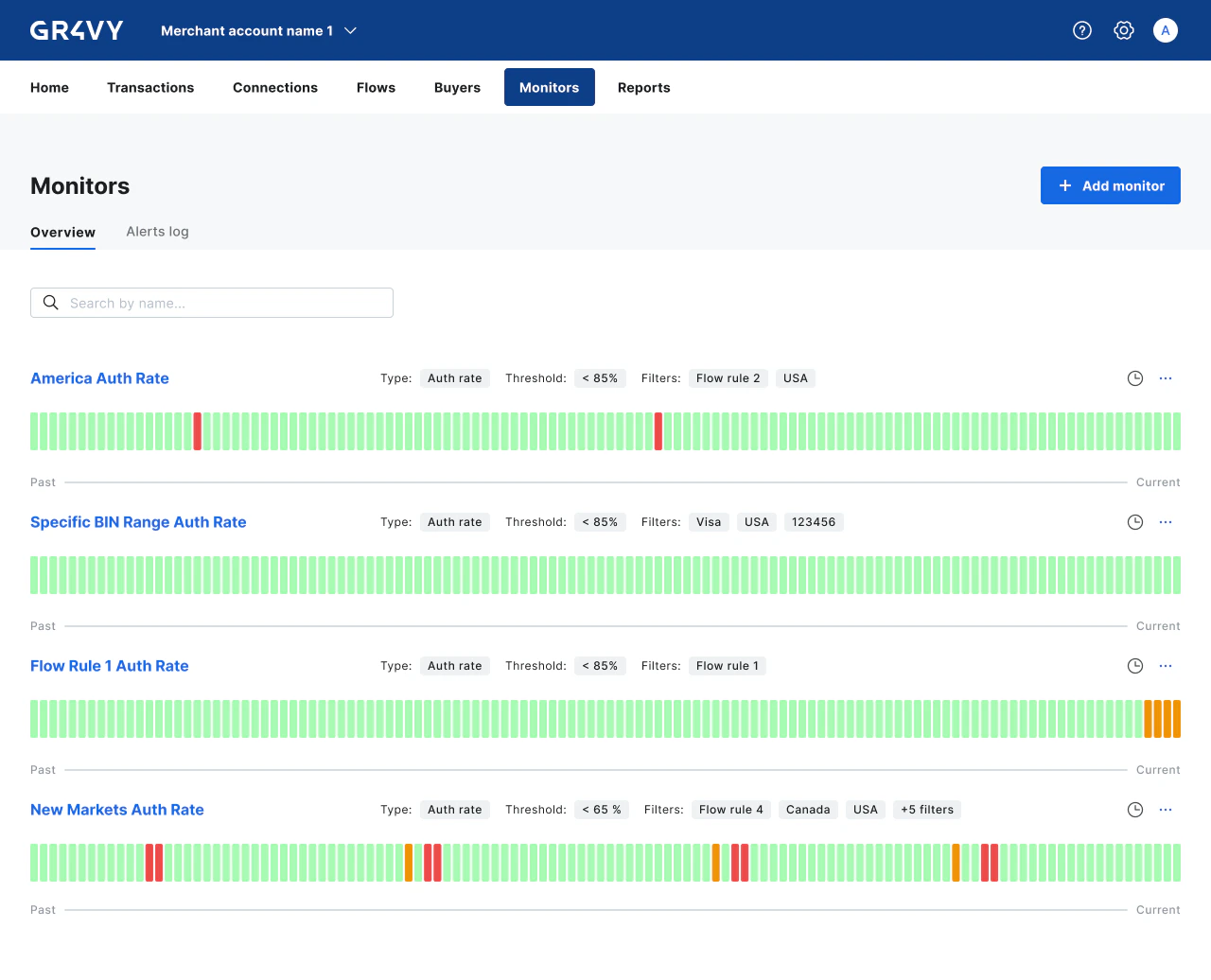
- Monitor name
- Metric type - for example, Authorization rate (
auth_rate) - Threshold configuration
- Applied filters
- Evaluation period - Indicated by the stopwatch icon, showing the time window used to aggregate each sample.
- A sample timeline showing historical values from oldest (left) to most recent (right)
During the launch phase, each merchant account is limited to 10 monitors
while usage patterns are being evaluated.
Samples
A sample represents a single data point collected during the monitor’s evaluation period. Samples are displayed chronologically, with older values on the left and newer values on the right. Samples are immutable, collected automatically every minute, and retained for 30 days.
- Green - The sample is within the configured threshold.
- Amber - The sample breached the configured threshold but did not trigger an alert. When a monitor uses a verify sensitivity, breaches during the delay period remain amber and are not retroactively promoted when the alert fires.
- Red - The sample is associated with an active or historical alert.
- Gray - The sample has no evaluation data, for example when data for that period was delayed or unavailable.
Tooltips
Select or hover over a sample in the timeline to view additional context for that data point.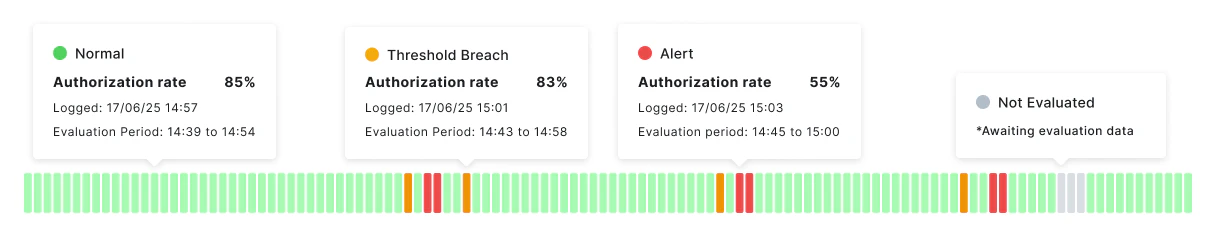
- Status - The evaluation result, such as Normal, Threshold Breach, or Alert.
- Measured value - The metric value recorded for the sample, such as the authorization rate.
- Logged - The timestamp when the sample was collected.
- Evaluation period - The time window used to calculate the sample. For example, a sample may aggregate transactions from the previous 15 minutes.