

Supported payment methods
Integration shows how the buyer pays:- Direct: you send card or bank account details through Gr4vy, using Embed, Secure Fields, or the API. Gr4vy stores bank accounts. See Bank payments.
- Redirect: the buyer completes the payment on the provider’s page, and the provider keeps their details.
- Redirect or SDK: as redirect, or you can use the provider’s own SDK or components in place of the redirect. See the method’s page.
Setup
Checkout.com provides a self-service sign-up for a sandbox account. To sign up for an account, visit the sign-up page and fill in the details.Enable full card processing
When a card payment is routed through this connection, Gr4vy sends the full card number (PAN) to Checkout.com, so your Checkout.com account must be enabled for full card processing. If this is not enabled, payments fail with aFull card payments disabled error.
Contact your Checkout.com account manager to confirm that full card processing
is enabled for the merchant ID (MID) used by this connection before going live.
Add to the Gr4vy dashboard
To add Checkout.com as a connection in the Gr4vy dashboard:- In the Gr4vy dashboard, navigate to Connections -> Add connection.
- Search for and select Checkout.com.
- Enter a display name for this connection, for example
Checkout.com. - Enter the credentials described in the Credentials section below.
- Click Save to create the connection.
payment_service_id in API requests.
Credentials
When setting up Checkout.com in the dashboard, get the following credentials from Checkout.com and configure them:Public key
Get the Checkout.com public key from the Checkout.com Developer Dashboard under the Developers -> Overview heading. Then click + Create a new key and select Public API key.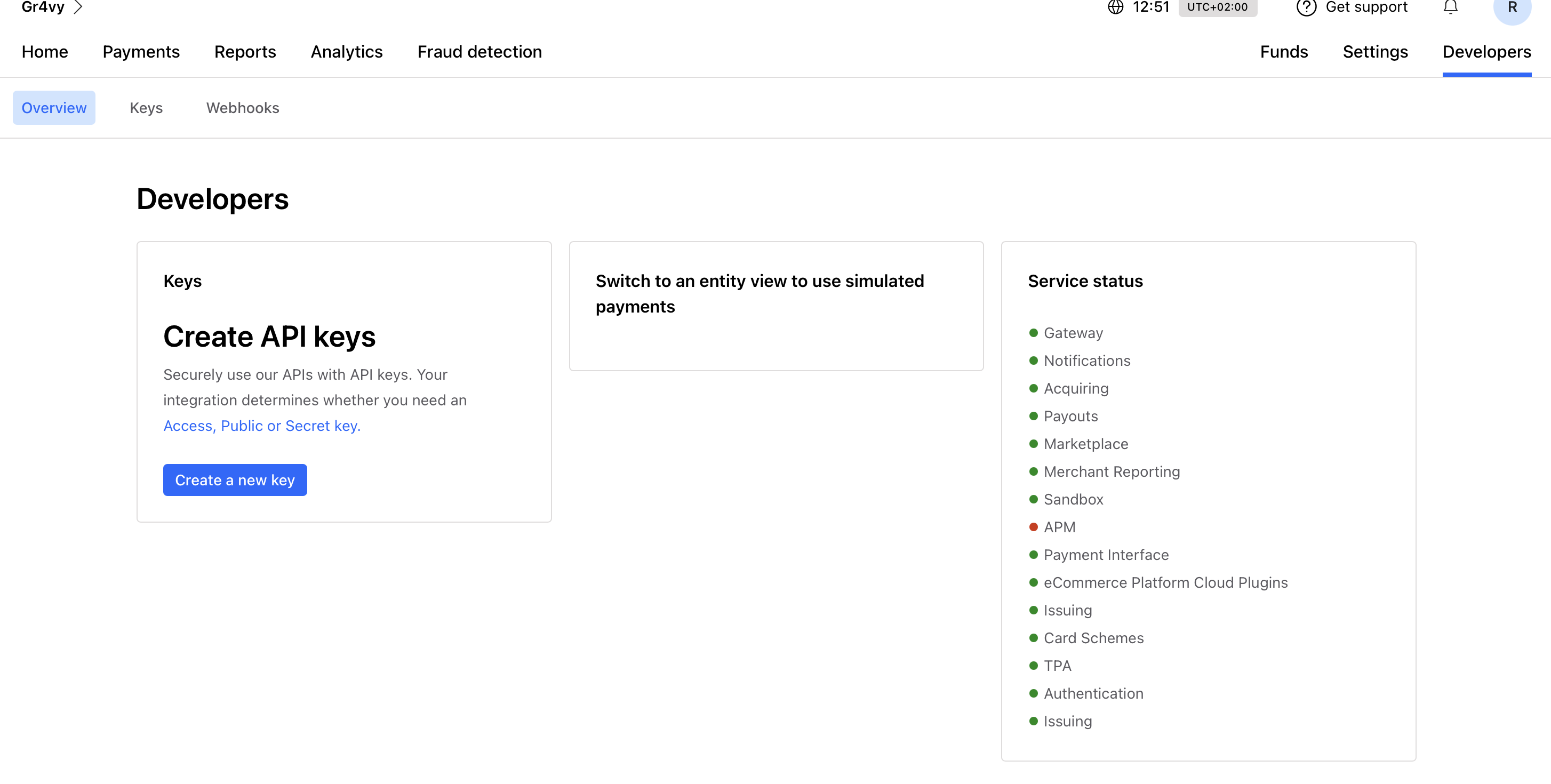
Checkout.com Public Key
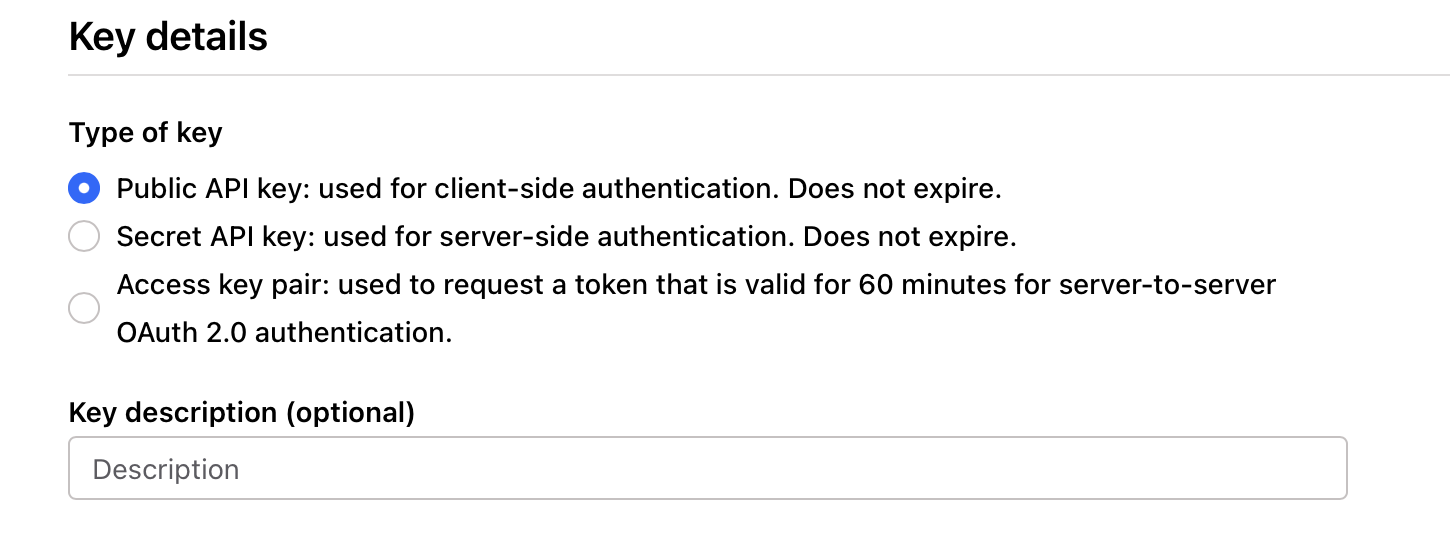
Checkout.com Public Key setup
Secret key
Navigate to the same section and select + Create a new key, then select Secret API key.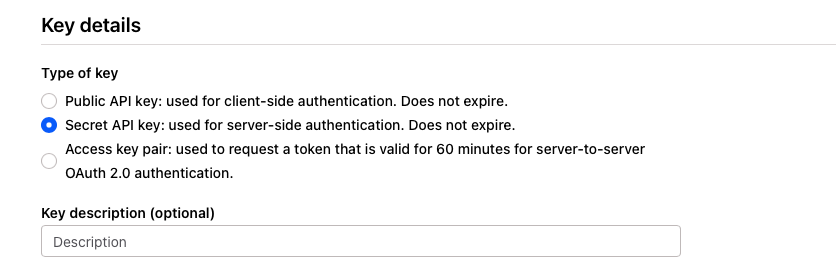
Checkout.com Secret Key setup
Client ID
The client ID is optional. Newer Checkout.com accounts use an account-specific API URL, and Gr4vy needs the client ID (it starts withcli_) to build that
URL. If your Checkout.com account uses an account-specific API URL, enter the
client ID from the Checkout.com dashboard. Without it, Gr4vy sends requests to
the default Checkout.com API URL.
Webhook secret key
The webhook secret key is used to verify webhook signatures from Checkout.com. You obtain this value after registering the Gr4vy webhook URL in the Checkout.com dashboard. See Webhooks for setup steps.Payout funding account
Use this value to enable payouts and original credit transactions.Webhooks
Webhooks are required for this connection. Checkout.com uses webhooks to notify Gr4vy of payment events such as captures, refunds, and voids.Get webhook URL
In the Gr4vy dashboard, navigate to Connections -> Configured connections, select your Checkout.com connection, then scroll to the Synchronization section and copy the webhook URL.Register webhook
- In the Checkout.com Dashboard, navigate to Developers -> Webhooks.
- Click New webhook.
- Paste the Gr4vy webhook URL in the URL field.
- Under Event types, select the following events:
payment_approvedpayment_capturedpayment_capture_declinedpayment_declinedpayment_refundedpayment_refund_declinedpayment_returnedpayment_voidedpayment_void_declined
- Click Save.