> ## Documentation Index
> Fetch the complete documentation index at: https://docs.gr4vy.com/llms.txt
> Use this file to discover all available pages before exploring further.
# Creating an API key for use with React Native
Before the app can communicate with the API, create a new API key. The API handles authentication using a signed **JSON
Web Token** (JWT) which is passed in an HTTP header.
```bash theme={"system"}
curl -X GET https://api.example.gr4vy.app/transactions \
-H "authorization: bearer eyJhbGciOiJIUzI1NiIsInR5cCI6IkpXVCJ9.eyJzdWIi..."
```
Using an SDK is recommended. SDKs make the process of generating a token a lot easier and
are available in many popular programming languages. This is covered in the
next step.
## Create a new API key
To use the API, generate a new **API key**. Head over to
the dashboard and visit the **Integrations** page.
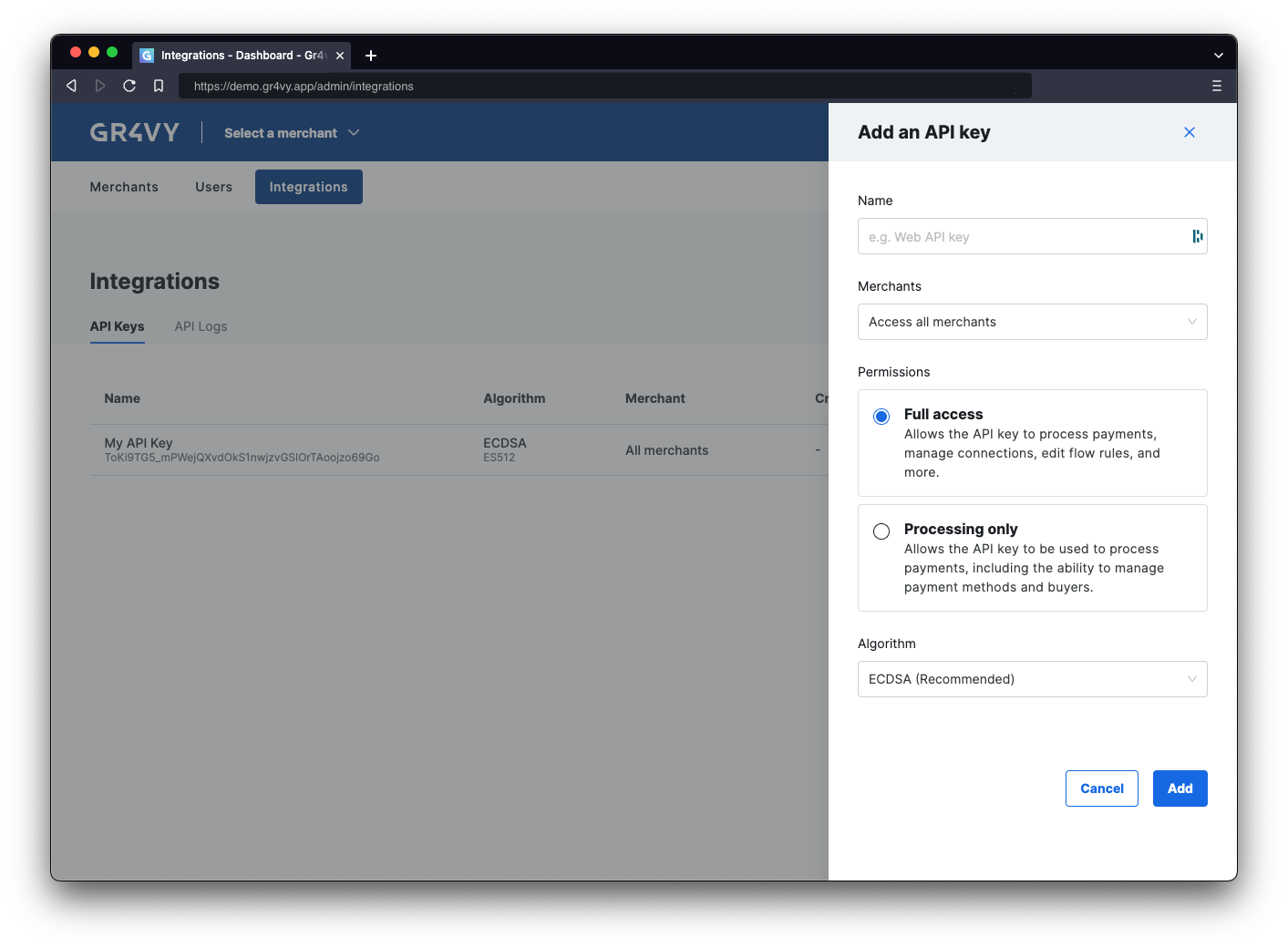 On this page, click the **Add API key** button and select a name for the key. The name is purely to track what key is for what integration.
The downloaded key needs to be stored securely as it is not stored by the system.
Learn more about API keys and JWTs in the
[in-depth guide on authentication](/guides/api/authentication).
## Summary
In this step:
* Learned about API authentication.
* Created a new API key for use with the API.
* Stored this API key in a secure place where the app can access it.
On this page, click the **Add API key** button and select a name for the key. The name is purely to track what key is for what integration.
The downloaded key needs to be stored securely as it is not stored by the system.
Learn more about API keys and JWTs in the
[in-depth guide on authentication](/guides/api/authentication).
## Summary
In this step:
* Learned about API authentication.
* Created a new API key for use with the API.
* Stored this API key in a secure place where the app can access it.