> ## Documentation Index
> Fetch the complete documentation index at: https://docs.gr4vy.com/llms.txt
> Use this file to discover all available pages before exploring further.
# Magento Configuration
Within the Magento dashboard you can access the module configuration by
going to **Stores** -> **Settings** -> **Configuration** -> **Sales** ->
**Payment Methods** -> **Gr4vy**.
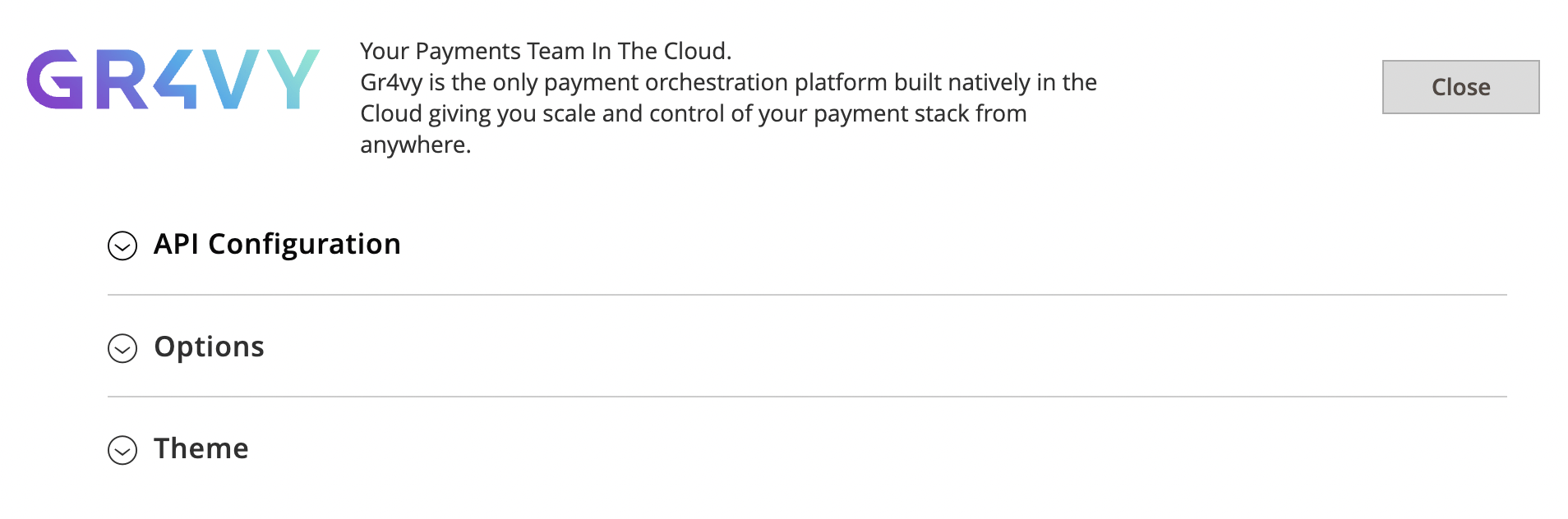 There are three configuration sections.
## API configuration
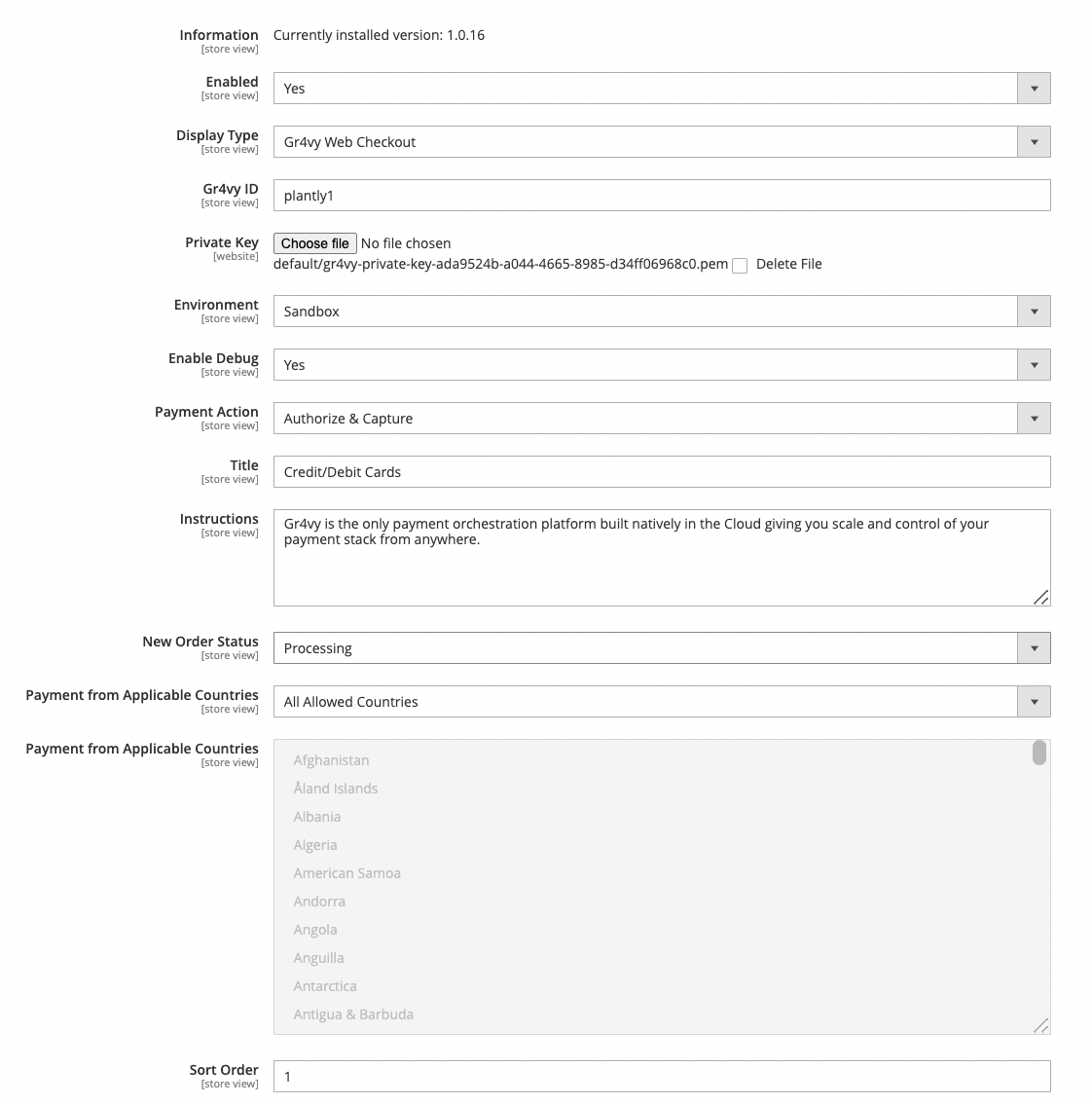
This contains the basic set up. Fill in
the `Gr4vy ID`, `Private Key`, and `Environment` fields based on the environment.
There are three configuration sections.
## API configuration
This contains the basic set up. Fill in
the `Gr4vy ID`, `Private Key`, and `Environment` fields based on the environment.
 ### API key
To use Magento, generate a new **API key**. Head over to
the dashboard and visit the **Integrations** page.
### API key
To use Magento, generate a new **API key**. Head over to
the dashboard and visit the **Integrations** page.
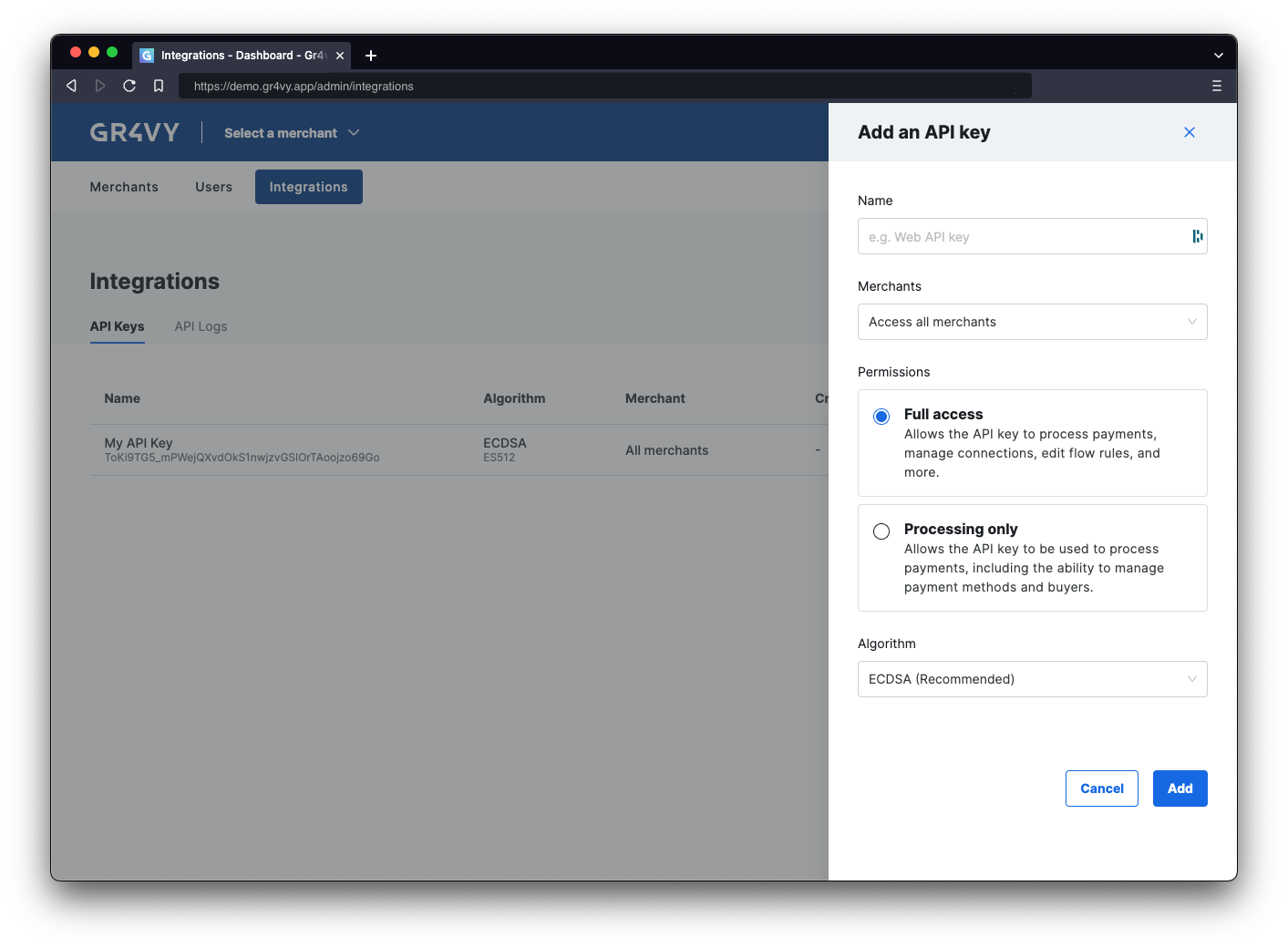 On this page, click the **Add API key** button, and select a name for the key. The name is purely to
track what key is for what integration. Upload the downloaded key
to Magento via the configuration panel.
When creating an API key for Magento, restricting the permissions for this key to **Processing only** is recommended.
Additionally, in a Multi-Merchant environment, restricting it to the targeted
merchant account only is recommended.
## Options
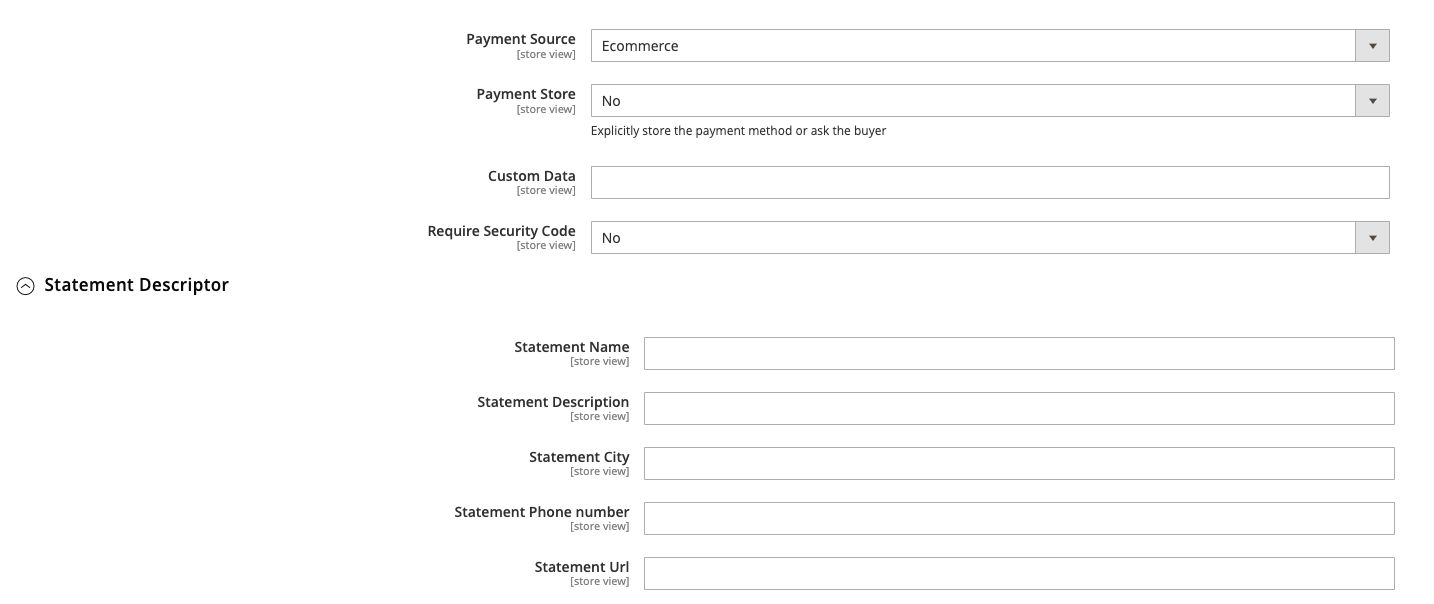
This allows you to further configure the behavior of the plugin.
On this page, click the **Add API key** button, and select a name for the key. The name is purely to
track what key is for what integration. Upload the downloaded key
to Magento via the configuration panel.
When creating an API key for Magento, restricting the permissions for this key to **Processing only** is recommended.
Additionally, in a Multi-Merchant environment, restricting it to the targeted
merchant account only is recommended.
## Options
This allows you to further configure the behavior of the plugin.
 ## Theming
Control of the theming of the Embed plugin used in Magento. See
[Embed theming](/guides/payments/embed/theming) for more details.
## Theming
Control of the theming of the Embed plugin used in Magento. See
[Embed theming](/guides/payments/embed/theming) for more details.
 ## Webhook configuration
The plugin supports handling incoming webhooks for asynchronous transaction status updates.
To support webhooks you'll need to setup the Magento Plugin webhook URL `{{magento2_url}}/gr4vy/webhook/order`.
## Webhook configuration
The plugin supports handling incoming webhooks for asynchronous transaction status updates.
To support webhooks you'll need to setup the Magento Plugin webhook URL `{{magento2_url}}/gr4vy/webhook/order`.