> ## Documentation Index
> Fetch the complete documentation index at: https://docs.gr4vy.com/llms.txt
> Use this file to discover all available pages before exploring further.
# Magento Administration
## Payment information
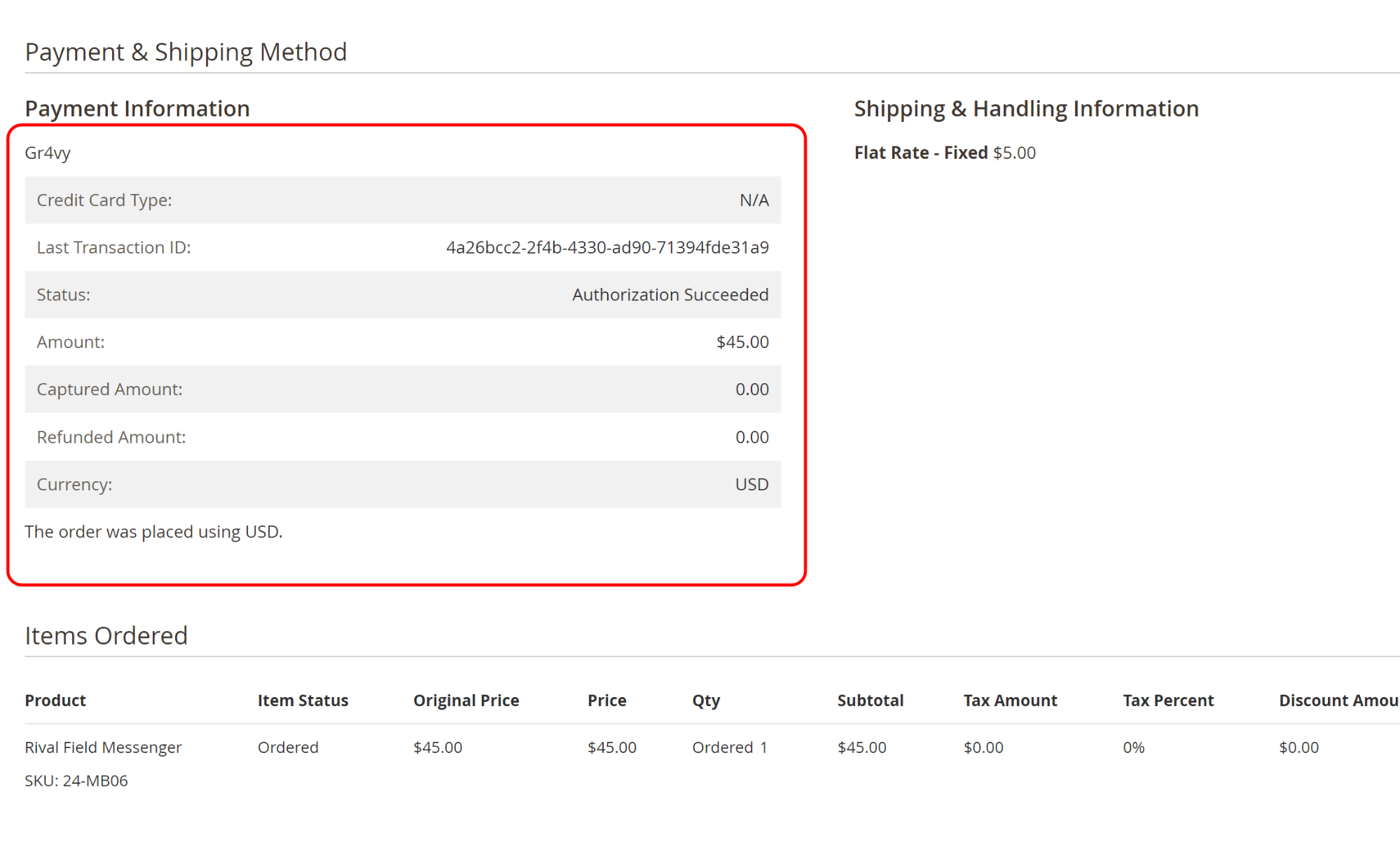
Transaction information can be found in the order edit page in the
Magento administrator panel by going to:
**Sales** -> **Orders** -> **\[Select Order]**
Information such as transaction id, transaction status, amount of transaction,
currency etc are presented in the **Payment Information** section:
 ## Capture payment online
The administrator user can capture an Authorized transaction by creating a new invoice
for the order.
To do this, go to:
**Sales > Orders > \[Select Order]** and click the **Invoice link**
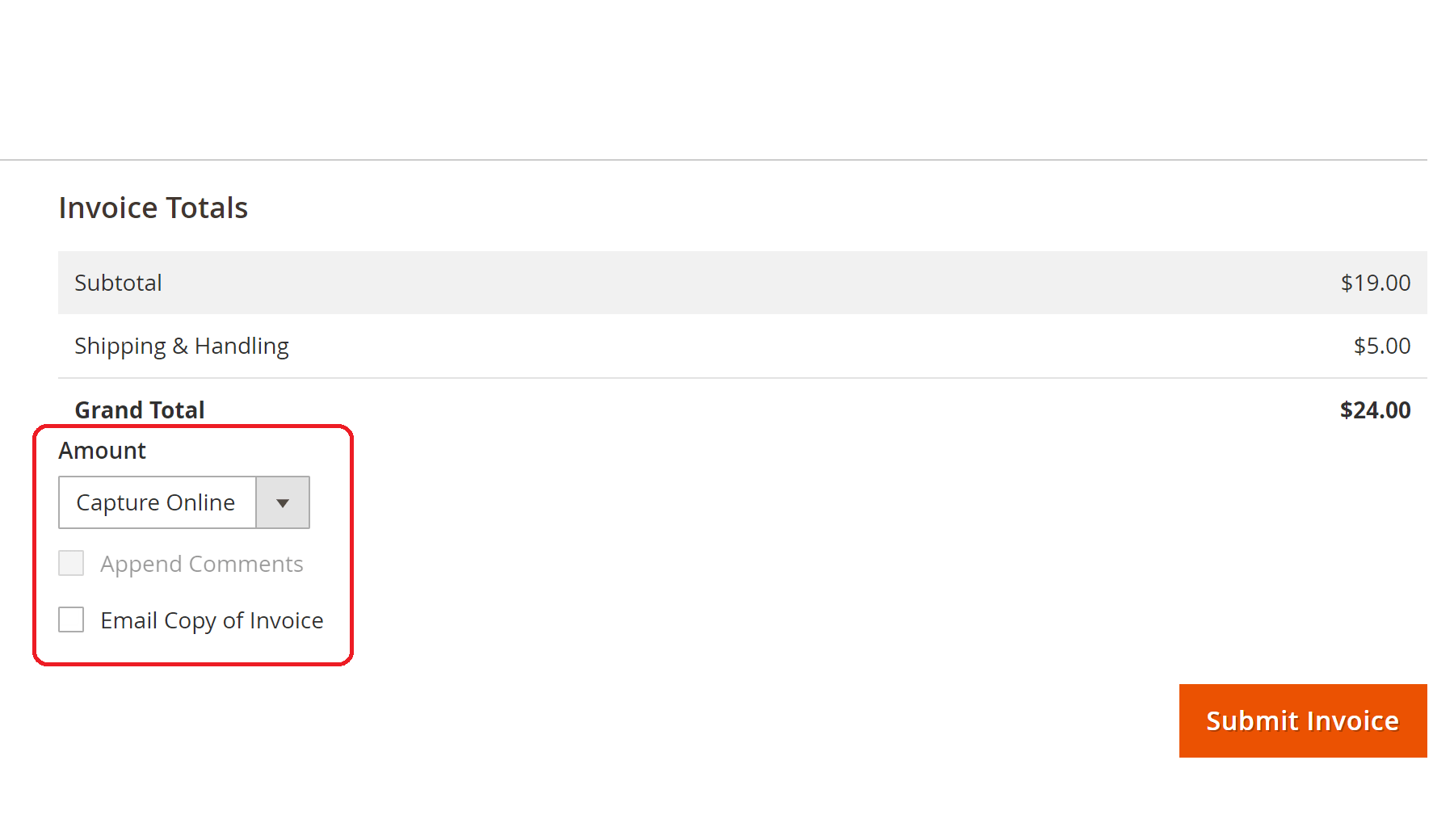
Select the **Capture Online** option under the **Amount** heading.
Finally, click the **\[Submit Invoice]** button to capture the payment.
**Capture Online**
Capture Online is not available if the **Payment Action** configuration is
set to **Authorize and Capture**
## Capture payment online
The administrator user can capture an Authorized transaction by creating a new invoice
for the order.
To do this, go to:
**Sales > Orders > \[Select Order]** and click the **Invoice link**
Select the **Capture Online** option under the **Amount** heading.
Finally, click the **\[Submit Invoice]** button to capture the payment.
**Capture Online**
Capture Online is not available if the **Payment Action** configuration is
set to **Authorize and Capture**
 ## Refund payment
To perform an online refund, go to the edit page of the invoice you want to
refund, via either of these routes:
**Sales > Invoices > \[Select Invoice]** and click the **\[Credit Memo]**
button
**Sales > Orders > \[Select Order]**, click the **Invoices** tab, **\[Select
Invoice]** and finally, click the **\[Credit Memo]** button
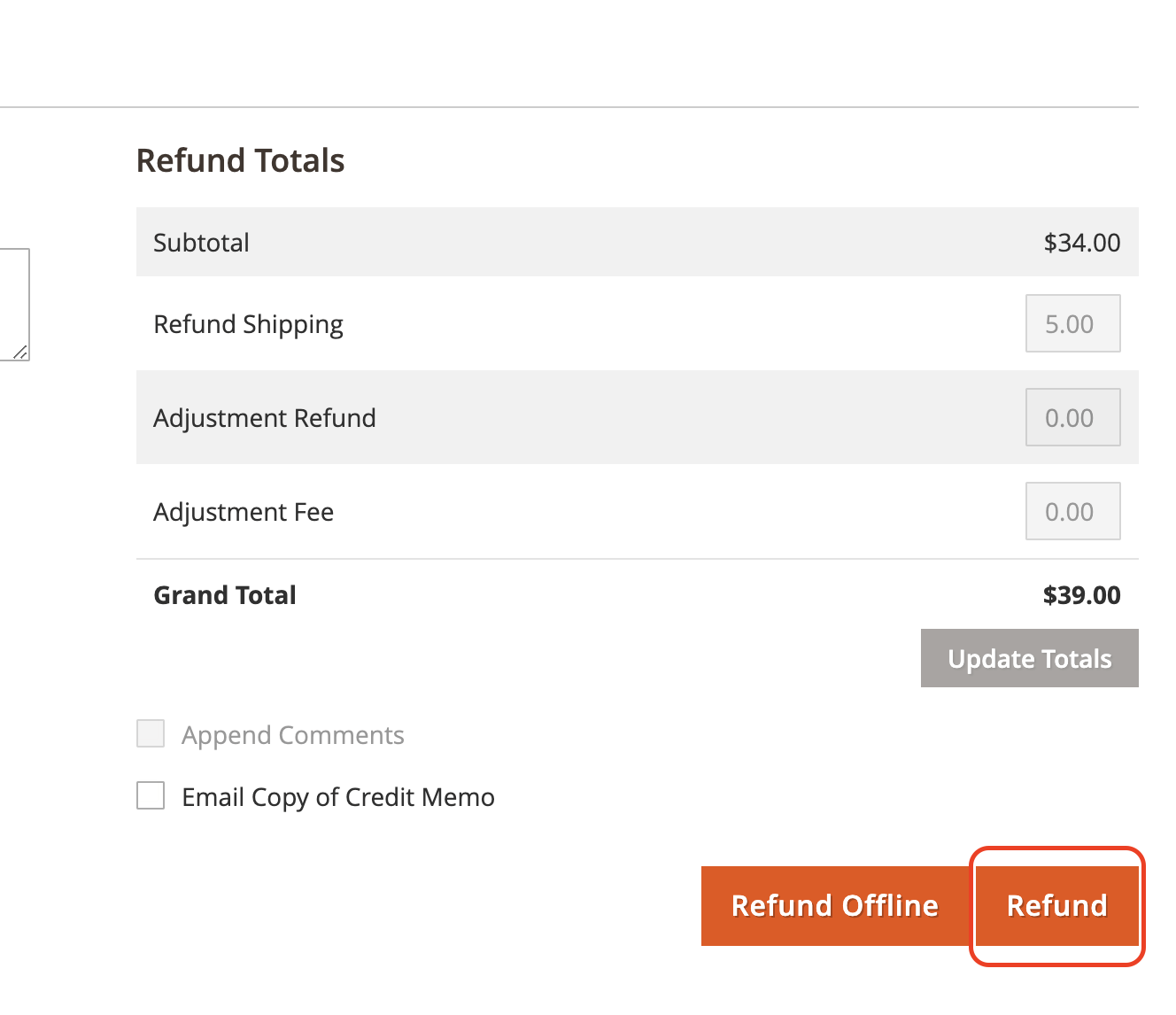
On the refund page, there are two action buttons available:
1. **\[Refund Offline]** - This option won't trigger a refund transaction in
the system, only in Magento
2. **\[Refund]** - This option instructs the system to refund the captured
transaction amount to the customer's account
## Refund payment
To perform an online refund, go to the edit page of the invoice you want to
refund, via either of these routes:
**Sales > Invoices > \[Select Invoice]** and click the **\[Credit Memo]**
button
**Sales > Orders > \[Select Order]**, click the **Invoices** tab, **\[Select
Invoice]** and finally, click the **\[Credit Memo]** button
On the refund page, there are two action buttons available:
1. **\[Refund Offline]** - This option won't trigger a refund transaction in
the system, only in Magento
2. **\[Refund]** - This option instructs the system to refund the captured
transaction amount to the customer's account
 ## Order comments history
Transaction information is appended to the order comments history section within
the order view page whenever a customer submits a transaction, or when an administrator
user performs a payment capture or a transaction refund request.
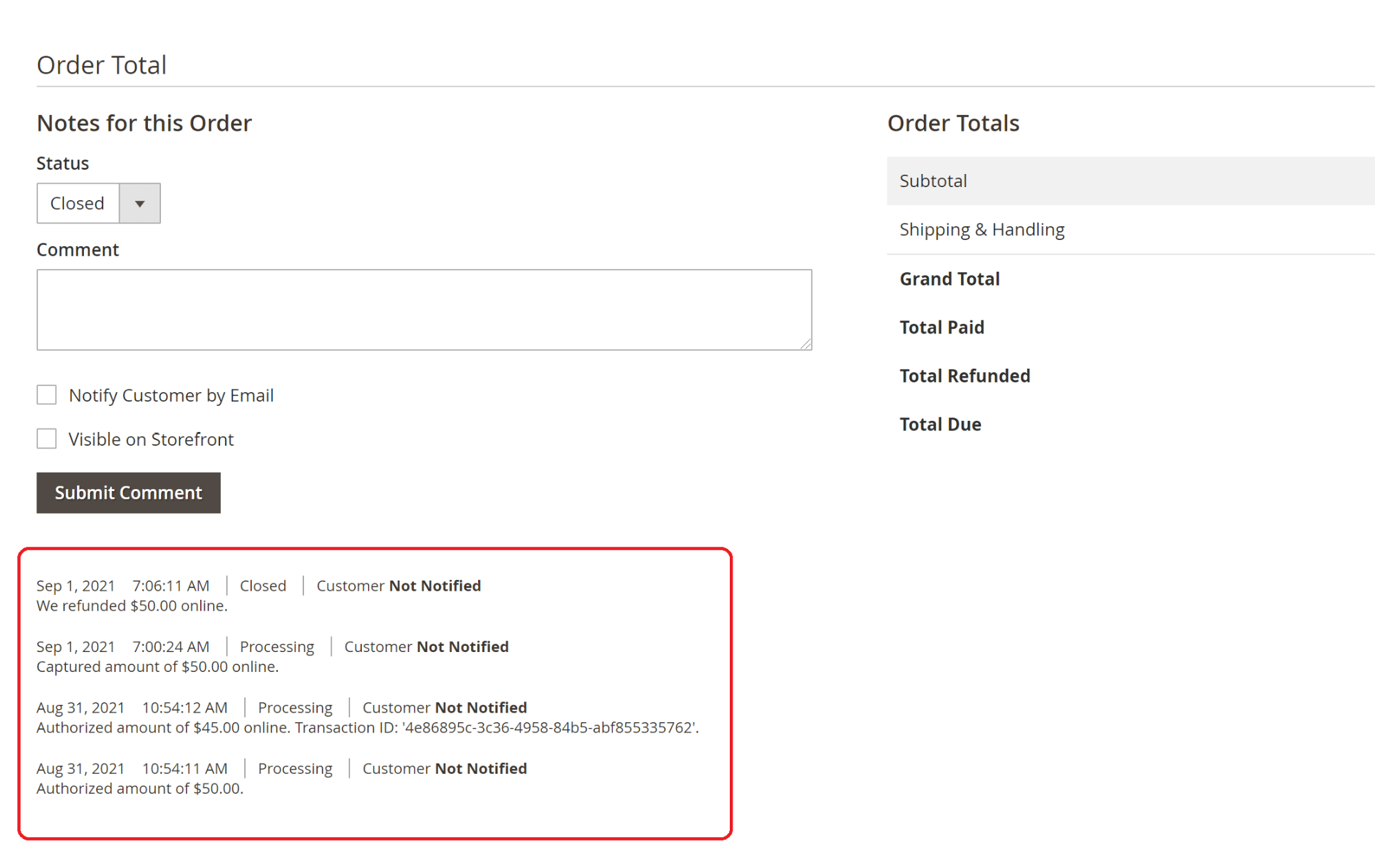
There are four types of transactional information, see examples below:
1. Authorization message from Magento
2. Authorization message from the system, with transaction ID
3. Capture message from the system
4. Refund message from the system
## Order comments history
Transaction information is appended to the order comments history section within
the order view page whenever a customer submits a transaction, or when an administrator
user performs a payment capture or a transaction refund request.
There are four types of transactional information, see examples below:
1. Authorization message from Magento
2. Authorization message from the system, with transaction ID
3. Capture message from the system
4. Refund message from the system