> ## Documentation Index
> Fetch the complete documentation index at: https://docs.gr4vy.com/llms.txt
> Use this file to discover all available pages before exploring further.
# Authentication
The API uses **Bearer (Token) Authentication** to authenticate requests. The value of this bearer token is a **JSON Web Token** (JWT), which is passed in the `Authorization` HTTP header and signed by a private API Key.
```bash theme={"system"}
curl -X GET https://api.example.gr4vy.app/transactions \
-H "authorization: bearer eyJhbGciOiJIUzI1NiIsInR5cCI6IkpXVCJ9.eyJzdWIi..."
```
## Create a new API key
To use the API, generate a new **API key**. Head over to
the dashboard and visit the **Integrations** page.
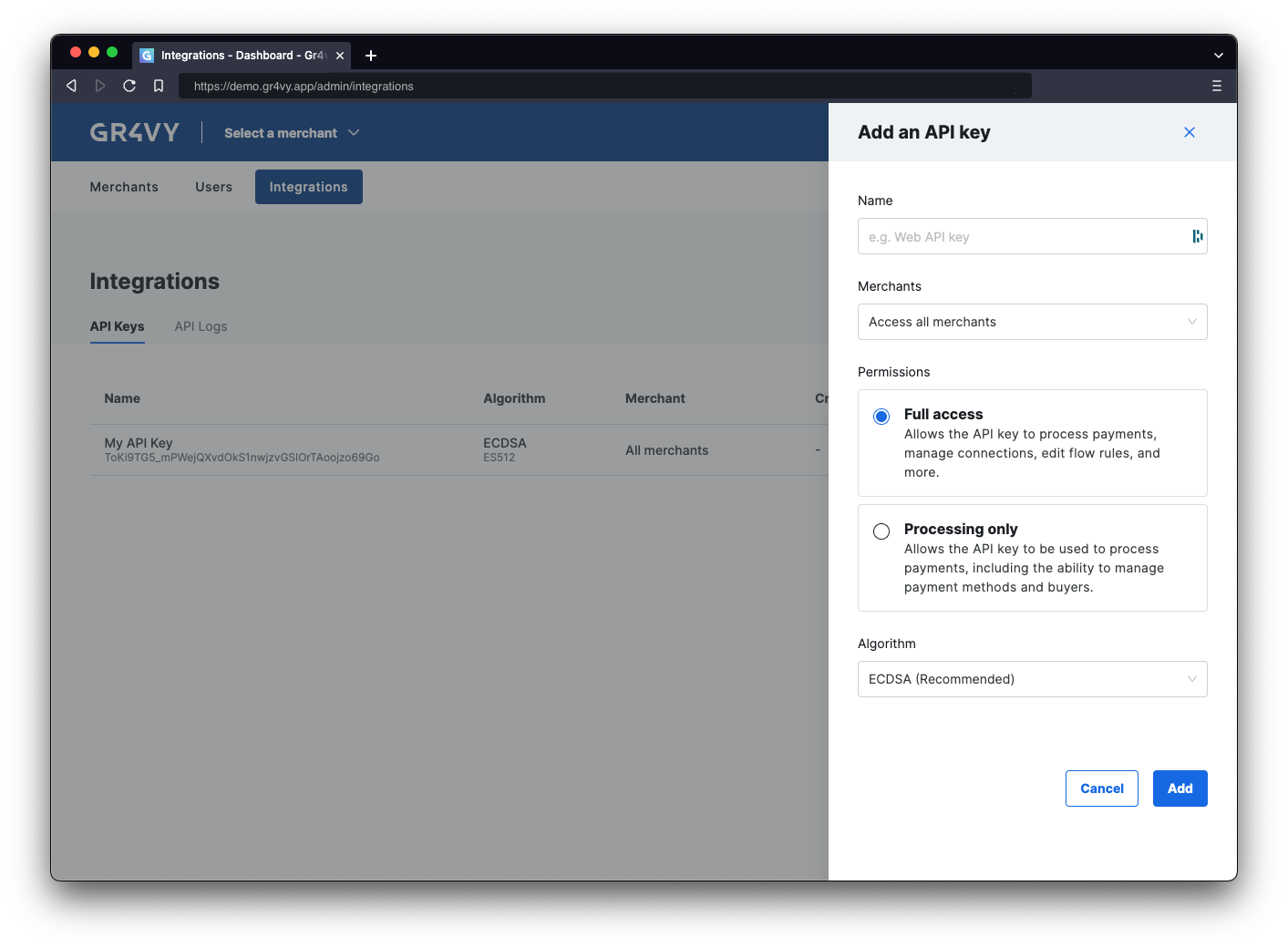 On this page, select the **Add API key** button and select a name for the key. The name is purely to track what key is for what integration.
The downloaded key needs to be stored securely as it is not stored by the system.
Using an SDK is the most simple way to call and authenticate with the API. When using one of the SDKs to call the API, authentication is handled by the SDK client. Simply
initialize the SDK with the private key to handle authentication.
## Install a server-side SDK
Use the package manager in the preferred programming language to install the
server-side SDK. Token generation can only be done server side and doing this client side is not recommended
as it exposes the API key to customers.
```sh C# theme={"system"}
dotnet add package Gr4vy
```
```sh Go theme={"system"}
go get github.com/gr4vy/gr4vy-go
```
```sh Java theme={"system"}
# Please check for the latest version
implementation 'com.gr4vy:sdk:1.0.0'
```
```sh PHP theme={"system"}
composer require "gr4vy/gr4vy-php"
```
```sh Python theme={"system"}
pip install gr4vy
```
```sh TypeScript theme={"system"}
npm install @gr4vy/sdk
# or: yarn add @gr4vy/sdk
```
Please always check and install the [latest release](/guides/get-started#sdks-and-plugins) of the preferred SDK.
## Initialize the SDK client
Next, initialize the SDK with the ID of the instance and the private key.
```csharp C# theme={"system"}
using Gr4vy;
using Gr4vy.Models.Components;
using System.Collections.Generic;
// Loaded the key from a file, env variable,
// or anywhere else
var privateKey = "...";
var sdk = new Gr4vySDK(
id: "example",
server: SDKConfig.Server.Sandbox,
bearerAuthSource: Auth.WithToken(privateKey),
merchantAccountId: "default"
);
```
```go Go theme={"system"}
package main
import (
"context"
gr4vy "github.com/gr4vy/gr4vy-go"
"github.com/gr4vy/gr4vy-go/models/operations"
"log"
"os"
)
func main() {
ctx := context.Background()
privateKey := "...." // Private key loaded from disk or env var
withToken := gr4vy.WithToken(privateKey, []JWTScope{ReadAll, WriteAll}, 60)
s := gr4vy.New(
gr4vy.WithID("example"),
gr4vy.WithServer(gr4vy.ServerSandbox),
gr4vy.WithSecuritySource(withToken),
gr4vy.WithMerchantAccountID("default"),
)
}
```
```java Java theme={"system"}
package hello.world;
import com.gr4vy.sdk.BearerSecuritySource;
import com.gr4vy.sdk.Gr4vy;
import com.gr4vy.sdk.Gr4vy.AvailableServers;
import com.gr4vy.sdk.models.components.AccountUpdaterJobCreate;
import com.gr4vy.sdk.models.errors.*;
import com.gr4vy.sdk.models.operations.ListTransactionsRequest;
import java.lang.Exception;
import java.util.List;
public class Application {
public static void main(String[] args) throws Exception {
String privateKey = "-----BEGIN PRIVATE KEY-----\n...."; // a valid private key
Gr4vy sdk = Gr4vy.builder()
.id("example")
.server(AvailableServers.SANDBOX)
.merchantAccountId("default")
.securitySource(new BearerSecuritySource.Builder(privateKey).build())
.build();
}
}
```
```php PHP theme={"system"}
declare(strict_types=1);
require 'vendor/autoload.php';
use Gr4vy;
use Gr4vy\Auth;
// Loaded the key from a file, env variable,
// or anywhere else
$privateKey = "...";
$sdk = Gr4vy\SDK::builder()
->setId('example')
->setServer('sandbox')
->setSecuritySource(Auth::withToken($privateKey))
->setMerchantAccountId('default')
->build();
```
```python Python theme={"system"}
from gr4vy import Gr4vy, auth
import os
client = Gr4vy(
id="example",
server="production",
merchant_account_id="default",
bearer_auth=auth.with_token(open("./private_key.pem").read())
)
```
```ts TypeScript theme={"system"}
import fs from "fs";
import { Gr4vy, withToken } from "@gr4vy/sdk";
const gr4vy = new Gr4vy({
server: "sandbox",
id: "example",
bearerAuth: withToken({
privateKey: fs.readFileSync("private_key.pem", "utf8"),
}),
});
```
The instance ID is the unique identifier for the deployment of the system and is included in every API call.
Together with the environment (sandbox or production) it is used to connect to the right APIs, as well as dashboard.
If calling the API without using an SDK, generate the JWT token and pass it as a bearer token in the API requests. A signed JWT token can be generated either using a helper function in an SDK or by manually generating and signing it.
The [authentication guide](/guides/api/authentication) has details on using these options.
## Summary
In this step you:
* Learned about API authentication
* Created a new private key for the API
* Used an SDK to authenticate or manually created a token
On this page, select the **Add API key** button and select a name for the key. The name is purely to track what key is for what integration.
The downloaded key needs to be stored securely as it is not stored by the system.
Using an SDK is the most simple way to call and authenticate with the API. When using one of the SDKs to call the API, authentication is handled by the SDK client. Simply
initialize the SDK with the private key to handle authentication.
## Install a server-side SDK
Use the package manager in the preferred programming language to install the
server-side SDK. Token generation can only be done server side and doing this client side is not recommended
as it exposes the API key to customers.
```sh C# theme={"system"}
dotnet add package Gr4vy
```
```sh Go theme={"system"}
go get github.com/gr4vy/gr4vy-go
```
```sh Java theme={"system"}
# Please check for the latest version
implementation 'com.gr4vy:sdk:1.0.0'
```
```sh PHP theme={"system"}
composer require "gr4vy/gr4vy-php"
```
```sh Python theme={"system"}
pip install gr4vy
```
```sh TypeScript theme={"system"}
npm install @gr4vy/sdk
# or: yarn add @gr4vy/sdk
```
Please always check and install the [latest release](/guides/get-started#sdks-and-plugins) of the preferred SDK.
## Initialize the SDK client
Next, initialize the SDK with the ID of the instance and the private key.
```csharp C# theme={"system"}
using Gr4vy;
using Gr4vy.Models.Components;
using System.Collections.Generic;
// Loaded the key from a file, env variable,
// or anywhere else
var privateKey = "...";
var sdk = new Gr4vySDK(
id: "example",
server: SDKConfig.Server.Sandbox,
bearerAuthSource: Auth.WithToken(privateKey),
merchantAccountId: "default"
);
```
```go Go theme={"system"}
package main
import (
"context"
gr4vy "github.com/gr4vy/gr4vy-go"
"github.com/gr4vy/gr4vy-go/models/operations"
"log"
"os"
)
func main() {
ctx := context.Background()
privateKey := "...." // Private key loaded from disk or env var
withToken := gr4vy.WithToken(privateKey, []JWTScope{ReadAll, WriteAll}, 60)
s := gr4vy.New(
gr4vy.WithID("example"),
gr4vy.WithServer(gr4vy.ServerSandbox),
gr4vy.WithSecuritySource(withToken),
gr4vy.WithMerchantAccountID("default"),
)
}
```
```java Java theme={"system"}
package hello.world;
import com.gr4vy.sdk.BearerSecuritySource;
import com.gr4vy.sdk.Gr4vy;
import com.gr4vy.sdk.Gr4vy.AvailableServers;
import com.gr4vy.sdk.models.components.AccountUpdaterJobCreate;
import com.gr4vy.sdk.models.errors.*;
import com.gr4vy.sdk.models.operations.ListTransactionsRequest;
import java.lang.Exception;
import java.util.List;
public class Application {
public static void main(String[] args) throws Exception {
String privateKey = "-----BEGIN PRIVATE KEY-----\n...."; // a valid private key
Gr4vy sdk = Gr4vy.builder()
.id("example")
.server(AvailableServers.SANDBOX)
.merchantAccountId("default")
.securitySource(new BearerSecuritySource.Builder(privateKey).build())
.build();
}
}
```
```php PHP theme={"system"}
declare(strict_types=1);
require 'vendor/autoload.php';
use Gr4vy;
use Gr4vy\Auth;
// Loaded the key from a file, env variable,
// or anywhere else
$privateKey = "...";
$sdk = Gr4vy\SDK::builder()
->setId('example')
->setServer('sandbox')
->setSecuritySource(Auth::withToken($privateKey))
->setMerchantAccountId('default')
->build();
```
```python Python theme={"system"}
from gr4vy import Gr4vy, auth
import os
client = Gr4vy(
id="example",
server="production",
merchant_account_id="default",
bearer_auth=auth.with_token(open("./private_key.pem").read())
)
```
```ts TypeScript theme={"system"}
import fs from "fs";
import { Gr4vy, withToken } from "@gr4vy/sdk";
const gr4vy = new Gr4vy({
server: "sandbox",
id: "example",
bearerAuth: withToken({
privateKey: fs.readFileSync("private_key.pem", "utf8"),
}),
});
```
The instance ID is the unique identifier for the deployment of the system and is included in every API call.
Together with the environment (sandbox or production) it is used to connect to the right APIs, as well as dashboard.
If calling the API without using an SDK, generate the JWT token and pass it as a bearer token in the API requests. A signed JWT token can be generated either using a helper function in an SDK or by manually generating and signing it.
The [authentication guide](/guides/api/authentication) has details on using these options.
## Summary
In this step you:
* Learned about API authentication
* Created a new private key for the API
* Used an SDK to authenticate or manually created a token