> ## Documentation Index
> Fetch the complete documentation index at: https://docs.gr4vy.com/llms.txt
> Use this file to discover all available pages before exploring further.
# Google Pay on web with Embed
Google Pay is the faster, more secure way to pay online using cards saved
in your customer's Google Account.
Google Pay is supported out of the box in Embed with minimal configuration.
## About this integration
Embed requires minimal configuration to get set up to process Google Pay. Unlike
some other integrations it does not require you to sign up for a Google Developer account.
## Enable Google Pay
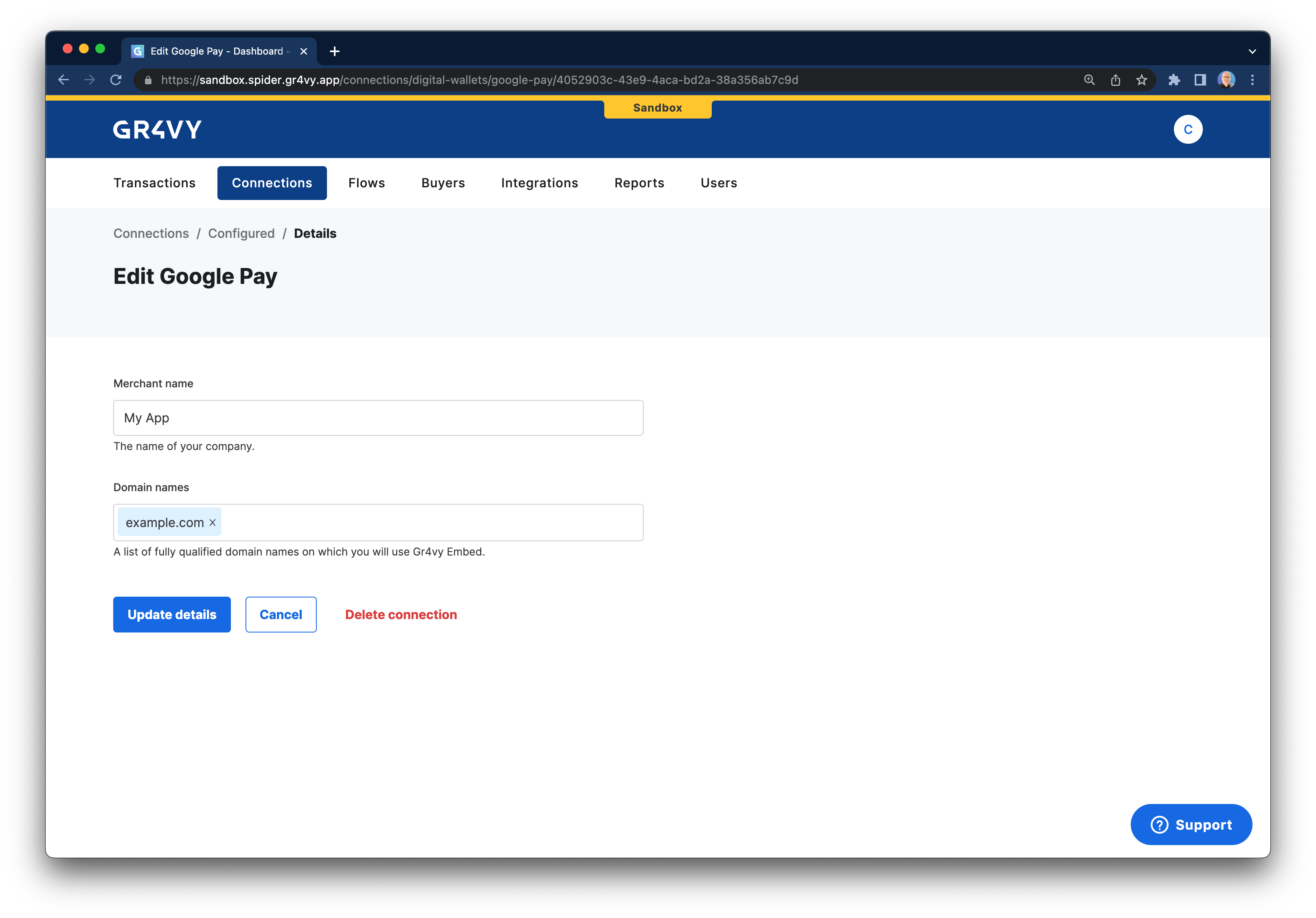
To enable Google Pay, head over to your dashboard and then go to
**Connections** -> **Catalog** -> **Google Pay**.
Next, fill in your merchant name and the one or more domain names where you want to
use Google Pay.
 ## Test Google Pay
To test Google Pay visit the site that has Embed loaded on it. Google Pay should
automatically be displayed. Please follow the Google Pay documentation with further guides on how
to add [test cards](https://developers.google.com/pay/api/android/guides/resources/test-card-suite) for use in
a sandbox environment.
## Common issues
You may have set the `Cross-Origin-Opener-Policy` header on the page on which Google Pay is loaded. Please ensure you set this to allow popups, for example `same-origin-allow-popups`.
## Test Google Pay
To test Google Pay visit the site that has Embed loaded on it. Google Pay should
automatically be displayed. Please follow the Google Pay documentation with further guides on how
to add [test cards](https://developers.google.com/pay/api/android/guides/resources/test-card-suite) for use in
a sandbox environment.
## Common issues
You may have set the `Cross-Origin-Opener-Policy` header on the page on which Google Pay is loaded. Please ensure you set this to allow popups, for example `same-origin-allow-popups`.