> ## Documentation Index
> Fetch the complete documentation index at: https://docs.gr4vy.com/llms.txt
> Use this file to discover all available pages before exploring further.
# Apple Pay on iOS without the SDK
It is possible to use Apple Pay in an iOS app without the SDK. To learn how to integrate
Apple Pay, following Apple's [documentation][documentation] is recommended.
The steps below highlight the basics and focus on the interaction with the API. A full [sample
app][documentation] is available in Apple's developer documentation.
## About this integration
Similar to the SDK integration, this setup requires you to perform the following steps.
* Enable Apple Pay in your merchant dashboard.
* Sign up for an Apple Pay Developer account and [register a payment processing certificate](/guides/features/apple-pay/ios#register-a-certificate).
* [Add the merchant ID](/guides/features/apple-pay/ios#add-the-certificate-to-your-app) and its processing certificate to your app.
Additionally, you then need to implement the following.
* Render your own Apple Pay button.
* Create a session with the right merchant ID.
* Catch the Apple Pay token and pass it to the API for processing.
## Enable Apple Pay
To enable Apple Pay, head over to your dashboard and then go to
**Connections** -> **Catalog** -> **Apple Pay**.
Next, complete, and submit the form to create a new Apple Pay service.
### Register a certificate
To process Apple Pay in a mobile app, register for an
Apple Pay developer account and join the [Apple developer program](https://developer.apple.com/programs/).
Once set up, generate a new Apple Pay processing certificate using the dashboard.
Go to
**Connections** -> **Apple Pay** -> **Certificates** and click **Add certificate**
to start the process.
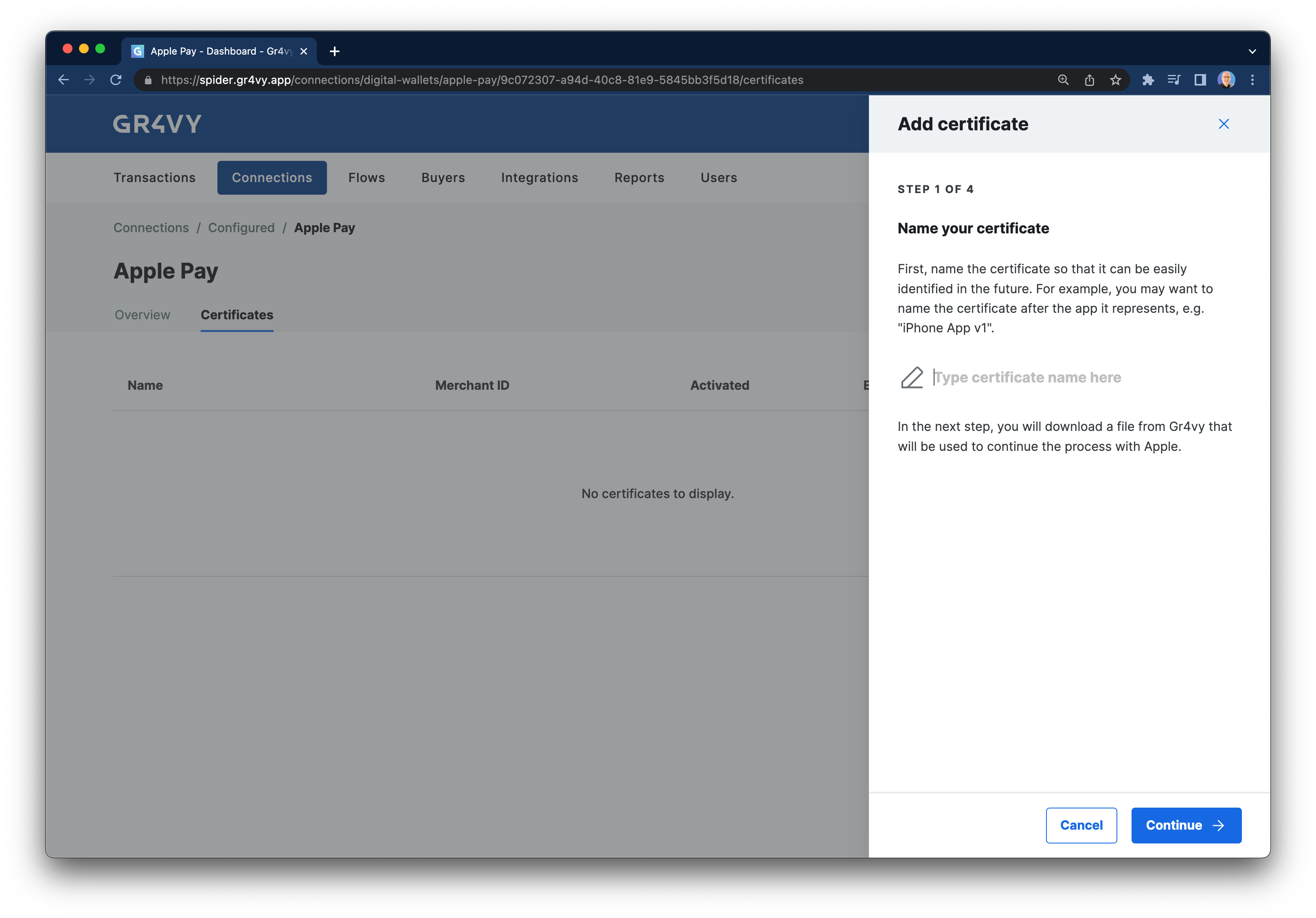 Provide a name and download a **Certificate Signing Request** (CSR).
Next, visit the [Apple developer dashboard](https://developer.apple.com/account/resources/identifiers/list/merchant)
to generate a payment processing certificate.
* Create or select a **Merchant ID** to associate a payment processing certificate with.
* In the **Apple Pay Payment Processing Certificate** section, click **Create Certificate**.
* Select **Choose File** to upload the CSR you downloaded from the dashboard, and then Continue.
* Verify the certificate details and **Download** the signed certificate from Apple.
Next, go back to the dashboard and upload the signed certificate.
### Add the certificate to your app
In order for the app to accept Apple Pay, set the same Apple **Merchant ID** in the app.
In the Xcode project, find the **Signing & Capabilities** in the project editor.
Select the same **Merchant ID** used to register the payment certificate. Please ensure the provisioning profiles
and signing certificates are updated to contain this ID.
## Integrate Apple Pay
### Display an Apple Pay button
An Apple Pay button can be displayed in a few different ways. [Apple's guide](https://developer.apple.com/documentation/passkit/apple_pay/offering_apple_pay_in_your_app#3846467)
shows a code sample that checks if Apple Pay is enabled on the device and then adds the button directly to a view with code.
```swift theme={"system"}
if let applePayButton = button {
let constraints = [
applePayButton.centerXAnchor.constraint(equalTo: applePayView.centerXAnchor),
applePayButton.centerYAnchor.constraint(equalTo: applePayView.centerYAnchor)
]
applePayButton.translatesAutoresizingMaskIntoConstraints = false
applePayView.addSubview(applePayButton)
NSLayoutConstraint.activate(constraints)
}
```
The sample app doesn't display the add button if a device can't accept
payments due to hardware limitations, parental controls, or any other reasons.
### Set the merchant ID
Once the button is clicked, the guide requires you to set up a new payment request. In this step, set the
`merchantIdentifier` to the merchant ID for the Apple Pay certificate you've [registered in the merchant dashboard](/guides/features/apple-pay/ios#enabling-apple-pay).
For example, if you registered a certificate for merchant ID `merchant.com.example.demo` in the dashboard, then set this same ID in your app code.
```swift theme={"system"}
let paymentRequest = PKPaymentRequest()
paymentRequest.paymentSummaryItems = paymentSummaryItems
paymentRequest.merchantIdentifier = "merchant.com.example.demo"
...
```
Apple's documentation has an [extensive
guide](https://developer.apple.com/documentation/passkit/apple_pay/setting_up_apple_pay)
on setting up your iOS app to accept Apple Pay.
### Create a transaction
Finally, once the Apple Pay transaction has been authorized by Apple, create a transaction with the API.
This API call could be made in your frontend code in Swift or Objective C, or
the token could be sent to your backend for processing.
```sh theme={"system"}
curl -X POST https://api.example.gr4vy.app/transactions \
-H "Authorization: bearer [JWT]"
-d '{
amount: 1299,
currency: "AU",
currency: "AUD",
payment_method: {
method: "applepay",
token: "[TOKEN]"
}
}'
```
In this example, the `[TOKEN]` value is the token from the [PKPayment](https://developer.apple.com/documentation/passkit/pkpayment) object as returned by Apple Pay
in the `paymentAuthorizationController(_:didAuthorizePayment:handler:)` method.
In React Native you can use any Apple Pay integration, together with your merchant identifier.
One of the easiest solutions is to use a library like [React Native Payments](https://github.com/appfolio/react-native-payments) to get
an Apple Pay token.
On initialization, any of these libraries requires you to set the Apple merchant identifier that
you created in the Apple developer dashboard earlier.
```js theme={"system"}
const METHOD_DATA = [{
supportedMethods: ['apple-pay'],
data: {
merchantIdentifier: 'merchant.com.your-app.namespace',
supportedNetworks: ['visa', 'mastercard', 'amex'],
countryCode: 'AU',
currencyCode: 'AUD'
}
}];
```
Once the user has approved the payment, your app receives an Apple Pay token from the library.
You can pass this library to the server for processing.
```js theme={"system"}
paymentRequest.show()
.then(paymentResponse => {
const { paymentData } = paymentResponse.details;
return fetch('https://api.example.gr4vy.app/transactions', {
method: 'POST',
headers: {
"Authorization": "Bearer [TOKEN]"
},
body: {
amount: 1299,
currency: "AU",
currency: "AUD",
payment_method: {
method: "applepay",
token: paymentData
}
}
})
.then(res => res.json())
.then(successHandler)
.catch(errorHandler)
});
```
## Common Issues
There could be many reasons why this doesn't show.
* Make sure the merchant ID is the same as shown in the dashboard
* Make sure the certificate isn't expire
* Make sure an Apple account is set up on the device and cards are added to it
* Make sure the system is set up to handle Apple Pay
* Check the Apple Pay connection is enabled
* Check a card connector is enabled for the selected country/currency
* Check that a Flow rule doesn't hide Apple Pay
There could be a few reasons why this doesn't show but most likely
this means the card was sent to a connector that either doesn't understand
Apple Pay cards, or did not recognize the test card.
This seems to happen at times with the test cards provided by Apple. Try a
different card, or try again later.
[documentation]: https://developer.apple.com/documentation/passkit/apple_pay/offering_apple_pay_in_your_app
Provide a name and download a **Certificate Signing Request** (CSR).
Next, visit the [Apple developer dashboard](https://developer.apple.com/account/resources/identifiers/list/merchant)
to generate a payment processing certificate.
* Create or select a **Merchant ID** to associate a payment processing certificate with.
* In the **Apple Pay Payment Processing Certificate** section, click **Create Certificate**.
* Select **Choose File** to upload the CSR you downloaded from the dashboard, and then Continue.
* Verify the certificate details and **Download** the signed certificate from Apple.
Next, go back to the dashboard and upload the signed certificate.
### Add the certificate to your app
In order for the app to accept Apple Pay, set the same Apple **Merchant ID** in the app.
In the Xcode project, find the **Signing & Capabilities** in the project editor.
Select the same **Merchant ID** used to register the payment certificate. Please ensure the provisioning profiles
and signing certificates are updated to contain this ID.
## Integrate Apple Pay
### Display an Apple Pay button
An Apple Pay button can be displayed in a few different ways. [Apple's guide](https://developer.apple.com/documentation/passkit/apple_pay/offering_apple_pay_in_your_app#3846467)
shows a code sample that checks if Apple Pay is enabled on the device and then adds the button directly to a view with code.
```swift theme={"system"}
if let applePayButton = button {
let constraints = [
applePayButton.centerXAnchor.constraint(equalTo: applePayView.centerXAnchor),
applePayButton.centerYAnchor.constraint(equalTo: applePayView.centerYAnchor)
]
applePayButton.translatesAutoresizingMaskIntoConstraints = false
applePayView.addSubview(applePayButton)
NSLayoutConstraint.activate(constraints)
}
```
The sample app doesn't display the add button if a device can't accept
payments due to hardware limitations, parental controls, or any other reasons.
### Set the merchant ID
Once the button is clicked, the guide requires you to set up a new payment request. In this step, set the
`merchantIdentifier` to the merchant ID for the Apple Pay certificate you've [registered in the merchant dashboard](/guides/features/apple-pay/ios#enabling-apple-pay).
For example, if you registered a certificate for merchant ID `merchant.com.example.demo` in the dashboard, then set this same ID in your app code.
```swift theme={"system"}
let paymentRequest = PKPaymentRequest()
paymentRequest.paymentSummaryItems = paymentSummaryItems
paymentRequest.merchantIdentifier = "merchant.com.example.demo"
...
```
Apple's documentation has an [extensive
guide](https://developer.apple.com/documentation/passkit/apple_pay/setting_up_apple_pay)
on setting up your iOS app to accept Apple Pay.
### Create a transaction
Finally, once the Apple Pay transaction has been authorized by Apple, create a transaction with the API.
This API call could be made in your frontend code in Swift or Objective C, or
the token could be sent to your backend for processing.
```sh theme={"system"}
curl -X POST https://api.example.gr4vy.app/transactions \
-H "Authorization: bearer [JWT]"
-d '{
amount: 1299,
currency: "AU",
currency: "AUD",
payment_method: {
method: "applepay",
token: "[TOKEN]"
}
}'
```
In this example, the `[TOKEN]` value is the token from the [PKPayment](https://developer.apple.com/documentation/passkit/pkpayment) object as returned by Apple Pay
in the `paymentAuthorizationController(_:didAuthorizePayment:handler:)` method.
In React Native you can use any Apple Pay integration, together with your merchant identifier.
One of the easiest solutions is to use a library like [React Native Payments](https://github.com/appfolio/react-native-payments) to get
an Apple Pay token.
On initialization, any of these libraries requires you to set the Apple merchant identifier that
you created in the Apple developer dashboard earlier.
```js theme={"system"}
const METHOD_DATA = [{
supportedMethods: ['apple-pay'],
data: {
merchantIdentifier: 'merchant.com.your-app.namespace',
supportedNetworks: ['visa', 'mastercard', 'amex'],
countryCode: 'AU',
currencyCode: 'AUD'
}
}];
```
Once the user has approved the payment, your app receives an Apple Pay token from the library.
You can pass this library to the server for processing.
```js theme={"system"}
paymentRequest.show()
.then(paymentResponse => {
const { paymentData } = paymentResponse.details;
return fetch('https://api.example.gr4vy.app/transactions', {
method: 'POST',
headers: {
"Authorization": "Bearer [TOKEN]"
},
body: {
amount: 1299,
currency: "AU",
currency: "AUD",
payment_method: {
method: "applepay",
token: paymentData
}
}
})
.then(res => res.json())
.then(successHandler)
.catch(errorHandler)
});
```
## Common Issues
There could be many reasons why this doesn't show.
* Make sure the merchant ID is the same as shown in the dashboard
* Make sure the certificate isn't expire
* Make sure an Apple account is set up on the device and cards are added to it
* Make sure the system is set up to handle Apple Pay
* Check the Apple Pay connection is enabled
* Check a card connector is enabled for the selected country/currency
* Check that a Flow rule doesn't hide Apple Pay
There could be a few reasons why this doesn't show but most likely
this means the card was sent to a connector that either doesn't understand
Apple Pay cards, or did not recognize the test card.
This seems to happen at times with the test cards provided by Apple. Try a
different card, or try again later.
[documentation]: https://developer.apple.com/documentation/passkit/apple_pay/offering_apple_pay_in_your_app