> ## Documentation Index
> Fetch the complete documentation index at: https://docs.gr4vy.com/llms.txt
> Use this file to discover all available pages before exploring further.
# Braintree
> Connect to Braintree to accept card payments and digital wallets.
Braintree is a payment platform from PayPal that supports card payments and popular wallets like Venmo. The platform provides a comprehensive payment processing solution with support for multiple payment methods, digital wallets, and advanced features for merchants worldwide.
## Supported payment methods
| Method | Countries | Currencies | Notes |
| -------------------------- | -------------------- | --------------------- | ----------------------------------- |
| [Card](./braintree-card) | `AD`, `AE`, 247 more | `AED`, `AMD`, 95 more | Card processing via Braintree. |
| [Venmo](./braintree-venmo) | `US` | `USD` | Digital wallet payments (USA only). |
## Setup
Braintree provides a self-service sign-up for a sandbox account. To sign up for an account visit the [sign-up page](https://www.braintreepayments.com/gb/sandbox) and fill in the details.
## Credentials
When setting up Braintree in the dashboard, configure the following credentials, which are obtained from the Braintree Admin Portal:
### Merchant ID
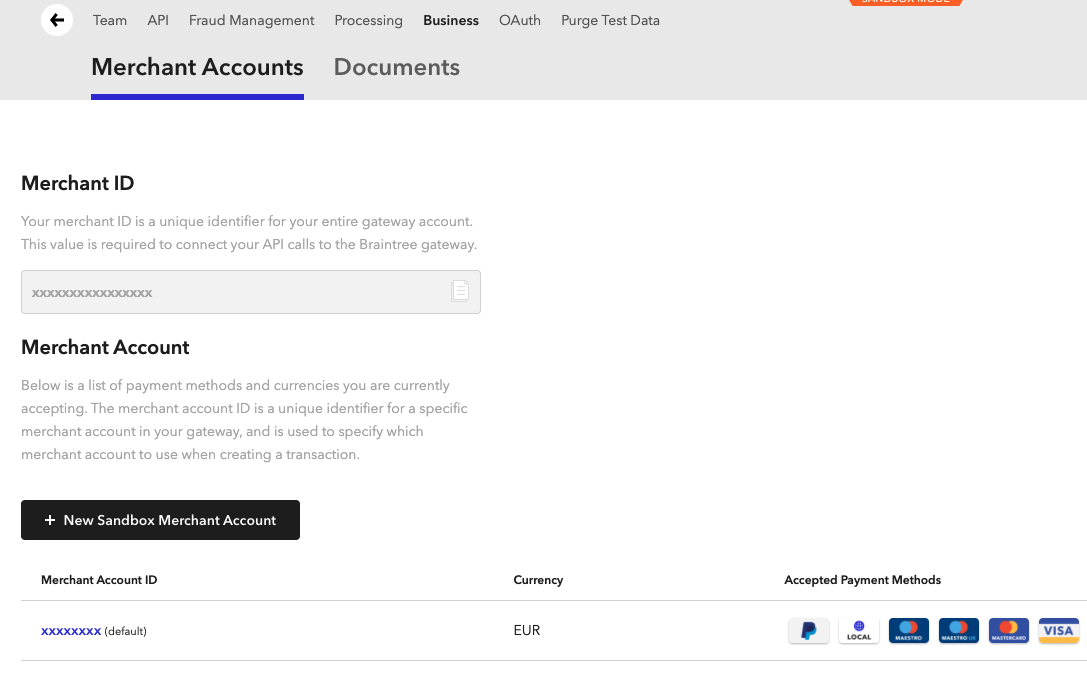
The Braintree Merchant ID can be found in the Braintree Admin Portal under the **Settings** -> **Business** -> **Merchant Accounts** tab.
 ### Merchant account ID
The Braintree Merchant Account ID can be found underneath the Merchant ID in the Braintree Admin Portal under the **Settings** -> **Business** -> **Merchant Accounts** tab.
Make sure to set the **Merchant Account ID**, not the Merchant ID.
If you receive a "You are unauthorized to perform this action" error, verify that you have
correctly configured the Merchant Account ID in your connection credentials.
### Public key
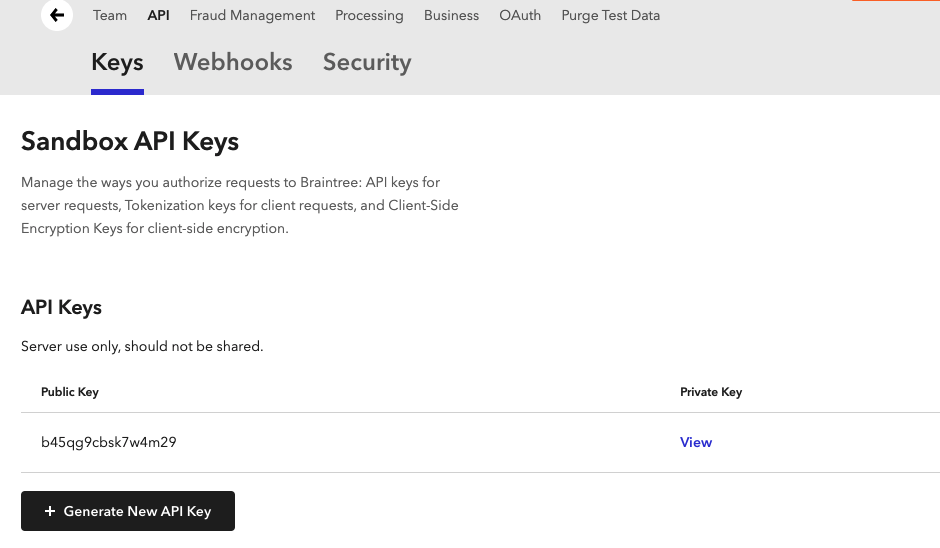
The Braintree Public Key can be found in the Braintree Admin Portal under the **Settings** -> **API** -> **Keys** tab.
### Merchant account ID
The Braintree Merchant Account ID can be found underneath the Merchant ID in the Braintree Admin Portal under the **Settings** -> **Business** -> **Merchant Accounts** tab.
Make sure to set the **Merchant Account ID**, not the Merchant ID.
If you receive a "You are unauthorized to perform this action" error, verify that you have
correctly configured the Merchant Account ID in your connection credentials.
### Public key
The Braintree Public Key can be found in the Braintree Admin Portal under the **Settings** -> **API** -> **Keys** tab.
 ### Private key
The Braintree Private Key can be found in the Braintree Admin Portal under the **Settings** -> **API** -> **Keys** tab.
### Private key
The Braintree Private Key can be found in the Braintree Admin Portal under the **Settings** -> **API** -> **Keys** tab.