> ## Documentation Index
> Fetch the complete documentation index at: https://docs.gr4vy.com/llms.txt
> Use this file to discover all available pages before exploring further.
# Cybersource Decision Manager
> Connect to Cybersource Decision Manager for anti-fraud screening and risk assessment.
Decision Manager (DM) is the anti-fraud service provided by Cybersource.
Although Cybersource DM can be run as part of the payment gateway as well,
it can only be used as a standalone service in the system.
## Prerequisites
When you choose to use Cybersource as a payment gateway alongside Cybersource
Decision Manager, you must configure the **Extended Settings** in the **Cybersource
Enterprise Business Centre (EBC)**. This makes sure the payment processing
and anti-fraud checks run independently and allows the system to manage the status
of the transaction correctly.
In EBC head over to **Decision Manager** -> **Configuration** -> **Extended Settings**,
and then ensure the following values are unchecked.
* Authorization-Card-Present
* Authorization-Card Not Present
## Credentials
To configure a Decision Manager connection, you need to set the
following credentials. Each of these can be found in the EBC.
| Credential | Description |
| :------------------ | :--------------------------------------------------------------------------------------------------------------------------------------------------------------------------------------------------------------- |
| Merchant ID | The Merchant ID is provided by Cybersource during setup. |
| SOAP Toolkit Key | This key needs to be generated in the Cybersource Enterprise Business Centre portal. |
| ThreatMetrix Org ID | This is the organization ID for use with ThreatMetrix device fingerprints. You need to contact your Cybersource support representative for this value. A different value is expected for sandbox and production. |
## Device fingerprinting
The use of device fingerprinting is highly recommended when using Cybersource DM.
The device fingerprint passed to Cybersource is generated automatically by the
[device fingerprinting library](/guides/features/anti-fraud/fingerprint).
If you want to pass your own `antiFraudFingerprint` to Embed or to the API,
load the fingerprint script for Cybersource directly and pass the `session_id`
value as the `anti_fraud_fingerprint` to the
[new transaction API](/reference/transactions/new-transaction).
```html theme={"system"}
```
## Webhooks for manual review
To enable manual review you need to set up webhooks from your anti-fraud service to the system. This
webhook is used to notify the system when a review is accepted or rejected.
To get the webhook URL, head over to your connection by going to **Connections** ->
**\[Anti-Fraud connection]** -> **Synchronization** and copy the webhook URL.
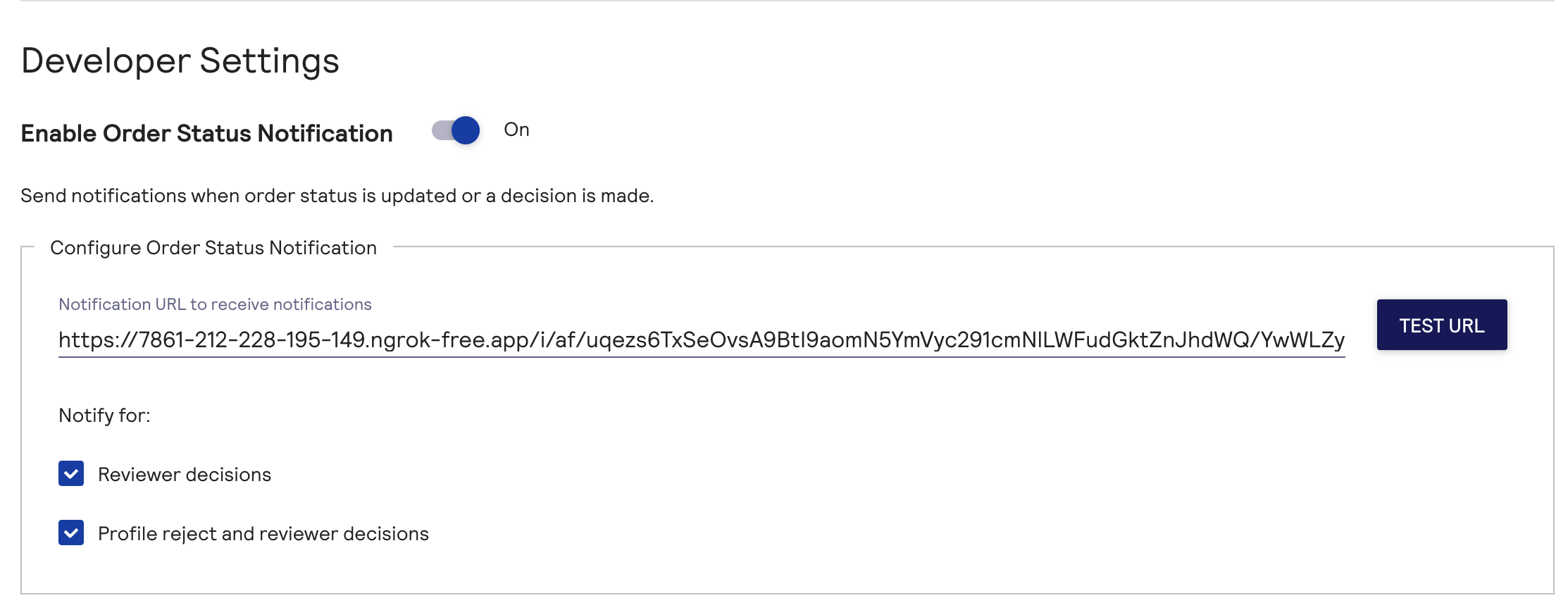
Next, login to EBC and navigate to **Decision Manager** -> **Configuration** -> **Extended Settings** and
paste the webhook URL into the **Configure Order Status Notification** input.
 ## Decision mapping
Decisions received from Cybersource are mapped to the decisions according to the following logic.
| Cybersource decision | Decision |
| :------------------- | :------- |
| `accept` | `accept` |
| `reject` | `reject` |
| `review` | `review` |
| `error` | `error` |
| all other | `error` |
If any of the data requirements below are not met, the decision is `skipped`. If there was a
technical issue reaching Forter the decision returns as an `exception`.
## Buyer requirements
When using Decision Manager, an anti-fraud decision is only possible
if the transaction has a minimum set of required fields set on a buyer.
To call DM, the transaction must be associated with a buyer and the
buyer must have the following fields populated.
* First name
* Last name
* Email address
* Line 1
* City
* Country
* Postal code
If any of these values are not provided then the call to Cybersource Decision
Manager can not be completed and the anti-fraud decision results in a **Skipped** decision.
### Additional data
When any of the following attributes are associated with a transaction they are
sent to Cybersource Decision Manager as well.
* The buyer's shipping address
* Any cart items
You can also pass custom merchant-defined data and a device fingerprint ID
specifically for Cybersource Decision Manager using [connection options](/reference/transactions/new-transaction#body).
## Sandbox testing
Using the EBC portal you can create custom
rules for Decision Manager. For example, you may choose to create a rule which
marks a transaction for manual review given the postal code matches a specific
value.
To test this rule you need to perform the following steps in the dashboard.
1. Create a [Cybersource Decision Manager connection](/guides/features/anti-fraud/setup)
2. Create a buyer with a matching postal code
3. Create a Flow rule to leverage the Cybersource Decision Manager connection
4. Create a transaction using the newly created buyer
## Decision mapping
Decisions received from Cybersource are mapped to the decisions according to the following logic.
| Cybersource decision | Decision |
| :------------------- | :------- |
| `accept` | `accept` |
| `reject` | `reject` |
| `review` | `review` |
| `error` | `error` |
| all other | `error` |
If any of the data requirements below are not met, the decision is `skipped`. If there was a
technical issue reaching Forter the decision returns as an `exception`.
## Buyer requirements
When using Decision Manager, an anti-fraud decision is only possible
if the transaction has a minimum set of required fields set on a buyer.
To call DM, the transaction must be associated with a buyer and the
buyer must have the following fields populated.
* First name
* Last name
* Email address
* Line 1
* City
* Country
* Postal code
If any of these values are not provided then the call to Cybersource Decision
Manager can not be completed and the anti-fraud decision results in a **Skipped** decision.
### Additional data
When any of the following attributes are associated with a transaction they are
sent to Cybersource Decision Manager as well.
* The buyer's shipping address
* Any cart items
You can also pass custom merchant-defined data and a device fingerprint ID
specifically for Cybersource Decision Manager using [connection options](/reference/transactions/new-transaction#body).
## Sandbox testing
Using the EBC portal you can create custom
rules for Decision Manager. For example, you may choose to create a rule which
marks a transaction for manual review given the postal code matches a specific
value.
To test this rule you need to perform the following steps in the dashboard.
1. Create a [Cybersource Decision Manager connection](/guides/features/anti-fraud/setup)
2. Create a buyer with a matching postal code
3. Create a Flow rule to leverage the Cybersource Decision Manager connection
4. Create a transaction using the newly created buyer